
Smart WIFI is a setting on the router that will move devices from 2.4ghz to 5ghz and vice versa to improve performance. However, the thing with the Smart Oil Gauge is that the device itself is not compatible with 5ghz. This can cause the gauge to disconnect and fail to upload to the app. This has been an issue for a while, but I am happy to announce that we have a solution for this! In this blog, I’ll be covering what to do to resolve the connectivity issues related to Smart WIFI.
Smart WIFI Mode
While Smart WIFI is a very useful setting on your router, it can be problematic for the Smart Oil Gauge as it disconnects consistently from the router. This is a little bit more common with networks that are fiberoptic because they have Smart WIFI enabled from the start. However, with this new Smart WIFI mode, we’ve resolved the gauge disconnecting from the WIFI.
This process will require you to start with the steps of our alternate update process. This requires you to go to your phone’s WIFI settings. Once there, you’ll want to press and hold the button down once for two seconds (one-one thousand, two-one thousand and release). This will cause the gauge to enter the secondary config mode. If done correctly, the light on the gauge will be blinking once every second. You should then see a network show up that says “CCF########”. This is your Smart Oil Gauge. You can join it by tapping on the network and typing in the password “smartoil”. You should then be brought to a screen that asks for “SSID”, “Password” and “Email Address”. Otherwise, go to your web browser (Google Chrome, Safari or Firefox) and type in 192.168.4.1 in the search bar and you’ll be bought to this screen.
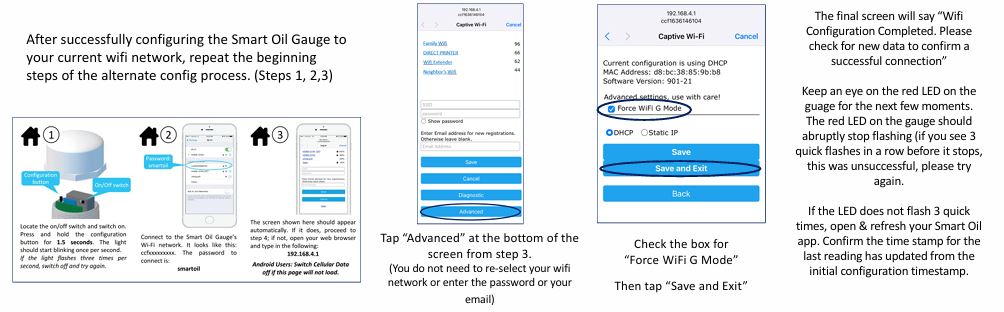
Once you are on this login screen, you’ll see on the bottom four blue boxes that say “Save”, “Cancel”, “Diagnostic” and “Advanced”. You’ll want to select the box that says “Advanced “. Once selecting that, it will take you to another screen that has the current configuration, MAC address and software version listed. There will be an option that says “Force WIFI G Mode”. Make sure that you check that off and select the option below that says “Save and Exit”. After doing that, you’ll get a screen that says “Configuration Complete”.
What to Know about Force WIFI G
Smart WIFI G Mode is a setting that is used to attempt to deal with the router moving the gauge to a 5ghz connection. Force WIFI G should lock the gauge onto the 2.4ghz connection. Going through the alternate process is the only way to access this and enable it. You cannot do it through the app, which means that if your router has Smart WIFI enabled, you’ll need to go through the alternate process to get the gauge setup to the WIFI. Then, after setting the gauge up to your WIFI, you’ll have to go through the process again to enable Force WIFI G.
If your gauge is already setup to the WIFI and you’ve had no WIFI changes, you’ll want to go through the process and get to the advanced screen, check off “Force WIFI G” and then press “Save and Exit”. After doing that the gauge should be locked onto the 2.4ghz connection of your WIFI. But, if you go back to this screen after hitting “Save” or if you go through this process to see if it worked, the check mark won’t be displayed.
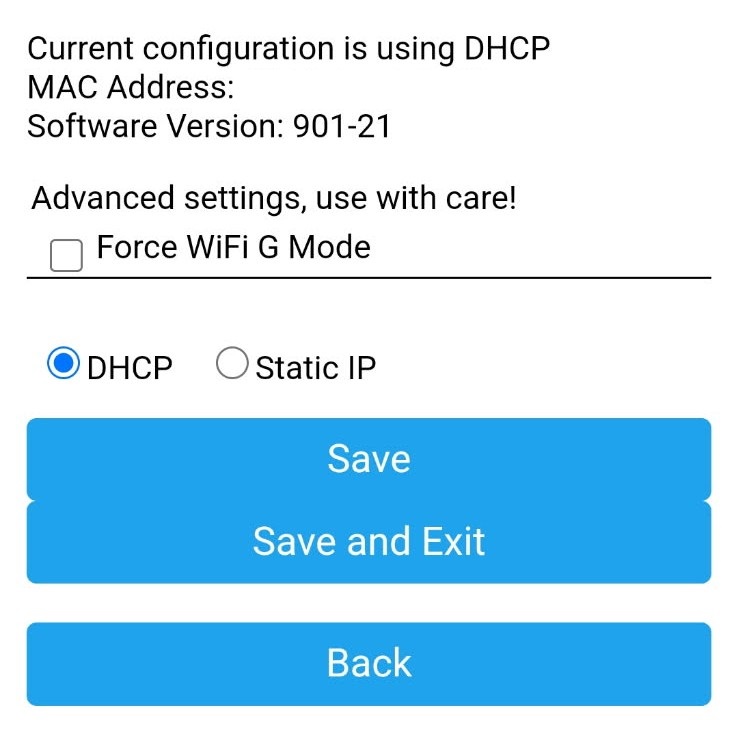
It’s important to note that only Smart Oil Gauges with firmware versions 901-21 and 903-02 will have “Force WIFI G”. You can check your Smart Oil Gauge in the advanced settings to see what firmware version it’s on. If it’s on the most recent version, then that “Force WIFI G” will be in your advanced settings. If your gauge is on 901-20 or 903-01, then give your device about 24-48 hours to catch the update. Otherwise, give us a call, and we can put in a request to force the update to your gauge on our backend!
Conclusion
While the Smart WIFI setting is useful it’s pretty annoying to constantly have the gauge disconnect from your WIFI. The “Force WIFI G” solution should resolve this without issue! By going through this process, you’ll be able to disable the Smart WIFI connection from your Smart Oil Gauge! This will ensure that your gauge has a strong and steady connection to your WIFI without disconnecting consistently!
If you need help doing this, feel free to reach out to our support team! We’ll be more than happy to help get this resolved for you! You can reach us at 203-456-1499 option 3 from 8am-5pm EST, Monday through Friday.
Happy Heating,
Hunter